Join Public RFQ
We are assuming that you’re already at(open) the Public RFQ Detail page.
Before Login
If you’re already logged in and already in the Public RFQ detail page, you can skip this section.
You can view the public RFQ before you login but for join the public RFQ, login is a must.
- click the green ‘Join’ button at the right corner
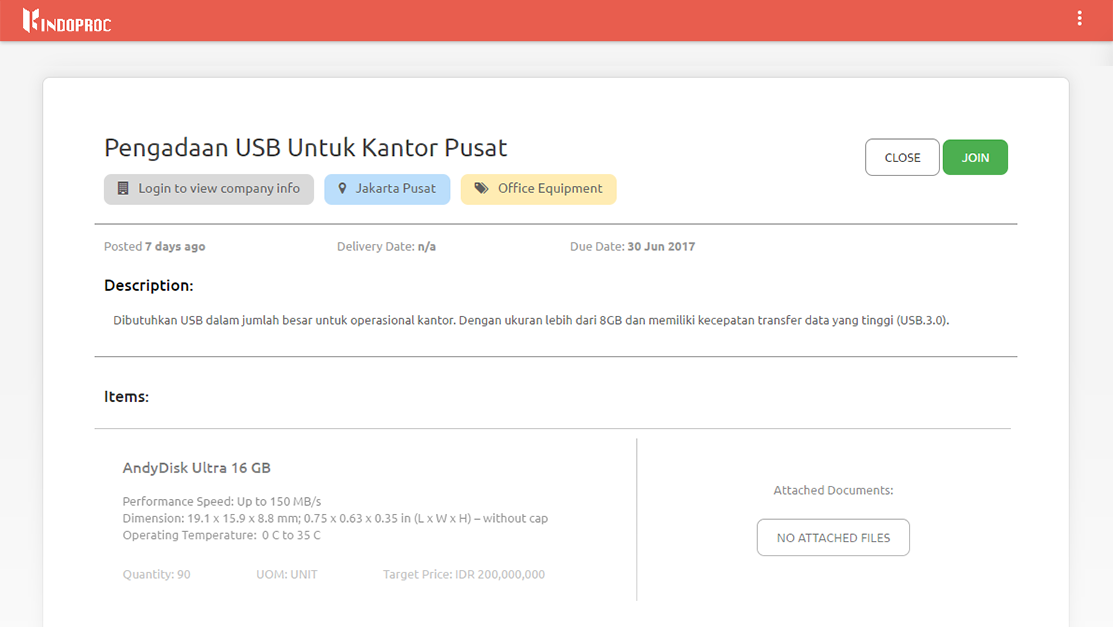
- Login form will be shown from the dropdown menu
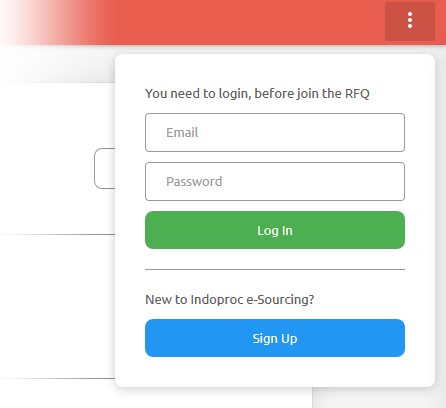
- If you’re not registered yet, you can sign up a new account by click the ‘Sign Up’ button
- If you already have an account, input your email and password, then click ‘Login’ button
- after login, read the instruction at ‘Create Quotation’ section below.
Create Quotation
Click the green ‘Send Quotation’ button at the right corner
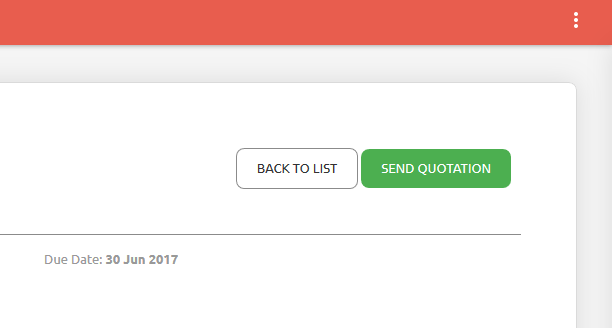
you’ll be redirected to quotation submit page

you just need to input your bid price (the unit price will be automatically calculated)
don’t forget to choose the tax menu to define that your inputted price is already included tax, excluded or no tax.
you can upload your support files/attachment for each item(format file supported: *.png, *.gif, *.jpg, *.jpeg, *.doc, *.docx, *.xls, *.xlsx, *.pdf)
you can add notes to the quotation plus, you can add your support files/attachment for your quotation
Click ‘Submit Quotation’